Python Debugger
Debugging PCells and scripts
The text editor opened by File->Edit Python file... has a Python debugger, used like the one in Visual Studio. It debugs PCells and ordinary Python scripts. The editor's toolbar and Debug menu have:
| Command | Key | Action |
|---|---|---|
| Start Debugging / Continue | F5 | Run the file, stopping at breakpoints; when stopped, carry on. |
| Start Without Debugging | Ctrl+F5 | Run the file, ignoring breakpoints. |
| Stop Debugging | Shift+F5 | Stop the program. |
| Step Over | F10 | Run to the next line, over function calls. Starts the program stopped at its first line. |
| Step Into | F11 | Run to the next line, into function calls. Starts the program stopped at its first line. |
| Step Out | Shift+F11 | Run until the current function returns, and stop at the call. |
| Toggle Breakpoint | F9 | Set or clear a breakpoint on the cursor's line. |
| Breakpoint Condition... | Set the condition of the breakpoint on the cursor's line, setting one if there is none. | |
| Clear All Breakpoints | Ctrl+Shift+F9 | Clear the file's breakpoints. |
| Breakpoints | Ctrl+Alt+B | Show or hide the Breakpoints panel. |
| Where | Ctrl+W | Print the call stack to the message window. |
| List | Ctrl+L | Print the source around the current line to the message window. |
| Debug as PCell... | Shift+Ctrl+R | Set the PCell's cellView and arguments, then debug it. |
| Debug as Script | Debug the file as a plain script. |
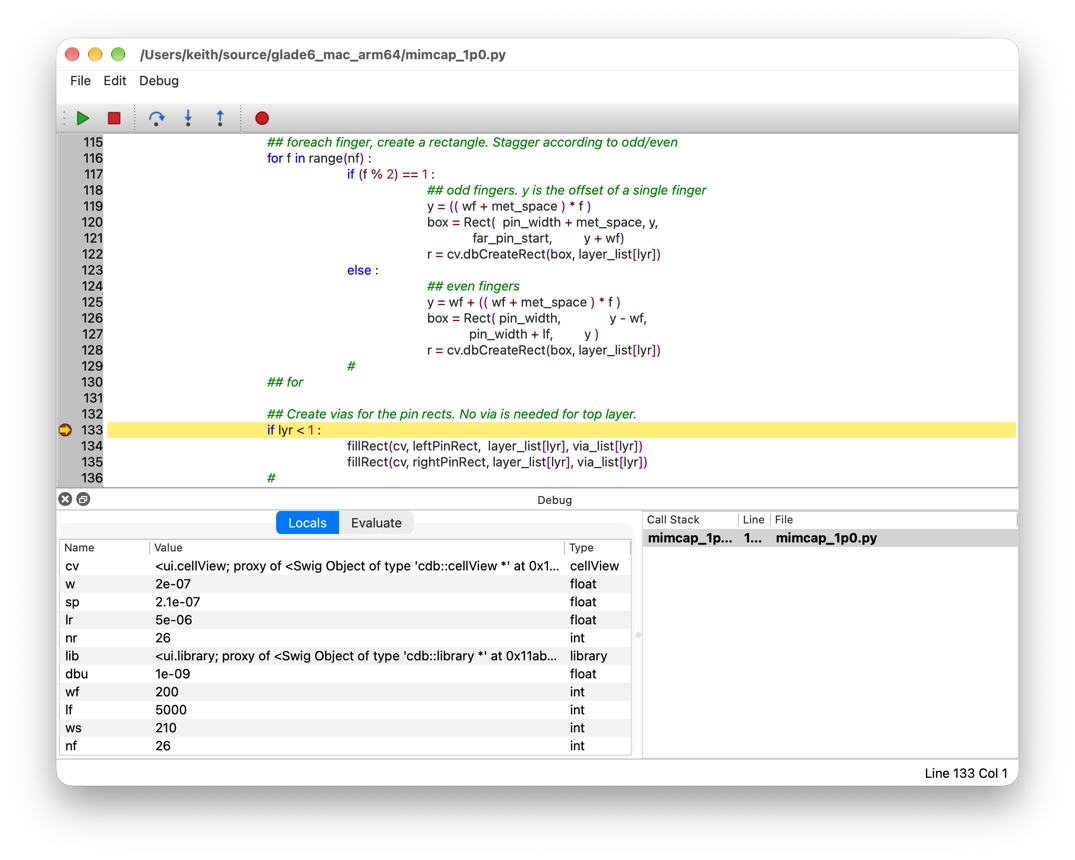
Click to the left of a line number to set or clear a breakpoint, shown as a red dot. When the program stops, a yellow arrow marks the line about to run, and the Debug panel below the text shows the call stack, the local and global variables of the selected frame (click a frame in the call stack to select it) and an Evaluate tab, where a Python expression or statement typed is run in the selected frame. If the program stops in another file, that file is opened in a new tab of the editor, and the tab showing the current line is always brought to the front. An exception that is not handled stops the program where it was raised, with the line marked in red, so its variables can be inspected. Output of print() goes to the message window as usual.
The Globals tab lists the variables of the module the selected frame's code is in. Imported modules, functions, classes and Glade's own names are left out; type globals() in the Evaluate tab to see them all.
Right-click the output of the Evaluate tab and choose Delete Entry to remove the expression clicked on and its result, or Clear All to empty it.
The file is saved before it is run, and the text cannot be edited while the program runs. Breakpoints stay with their lines as the text is edited, and are kept, while Glade runs, for files that are closed and opened again.
Breakpoints
A breakpoint can have a condition, a Python expression such as i == 10: the program then stops there only when the expression is true, evaluated in the breakpoint's frame. A conditional breakpoint is shown as a red dot with a white +. Right-click to the left of a line number to insert or delete a breakpoint or set its condition, or use Debug->Breakpoint Condition... for the cursor's line. A condition with a syntax error is refused when it is entered; if a condition cannot be evaluated when the line is reached, for example because it names a variable not set yet, the program stops there. When the program stops at a conditional breakpoint the status bar shows the condition. Conditions can be changed while the program is stopped, and take effect at once.
Debug->Breakpoints shows the Breakpoints panel, which lists the breakpoints of all files, including files that are not open, with each one's line, condition and code. Double-click a breakpoint to show its line, opening the file if need be, or double-click its condition to change it. The panel's buttons, also on its right-click menu, are:
| Button | Action |
|---|---|
| New... | Set a breakpoint in one of the window's files, at a line and with a condition entered. |
| Condition... | Set the condition of the selected breakpoint. An empty condition always breaks. |
| Delete | Delete the selected breakpoints (or press Delete). |
| Delete All | Delete the breakpoints of all files. |
A file that defines a function named after the file, such as nmos() in nmos.py, is taken to be a PCell. The first time it is run, a dialog asks for the library, cell and view the PCell draws into (by default nmos_debug / layout in the library of the current window) and for the values of its arguments, as Python expressions such as 2e-6, True or 'poly'; an empty value uses the argument's default. On each run the cellView is cleared and opened in a layout window, and the PCell function is called with it. Each time the program stops the layout window is redrawn, so the shapes the PCell has made so far can be seen, and when it finishes the window is fitted to them. Use Debug as PCell... to change the cellView or arguments. The PCell is loaded from the editor's file, so its directory need not be in PYTHONPATH while debugging.
Any other file runs as a script in Glade's Python namespace, as ui().execPythonFile() would run it.