Verification commands
The commands in the Verify menu. DRC and extraction decks are Python scripts; the functions they use are described in Programming in Python->Verification.
Menu Commands
Verify->Check...
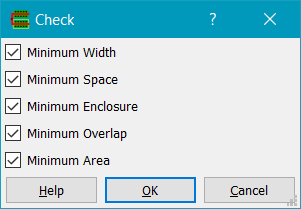
Each check is made once per layer name, on the merged shapes of all its purposes (drawing, net, pin and boundary) with the via instances, through the hierarchy: a wire is checked together with the via pads on it and the pins it lands on.
Displays the Check dialog. Width and spacing error checks can be performed if layer minWidth and minSpace properties have been set in the techfile or via loading LEF.
Minimum End of line checks the end of line spacing on each visible layer that has a MINEOLSPACE rule in the techfile (or a LEF SPACING ... ENDOFLINE ... WITHIN rule): a line end, an edge shorter than the rule's width with both corners convex, must have no metal less than the rule's space in front of it, out to within beyond each side. The number of failing line ends on each layer is reported, one for each line end. The check is the same as geomEolSpace.
Verify->Check Offgrid...
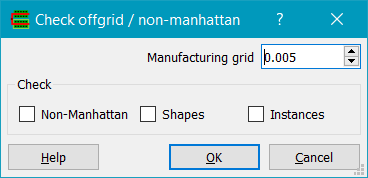
Displays the Check Offgrid dialog. If Non-Manhattan is checked, it will check and select any paths or polygons that contain non-manhattan edges. If Shapes is checked, it will check if any shape vertices are not on the specified Manufacturing grid. If Instances is checked, it will check if instance origins are on grid, and in the case of arrays that the rowSpacing and columnSpacing values are an integer multiple of the manufacturing grid. The command works on the top level cell only currently.
Verify->DRC->Run...
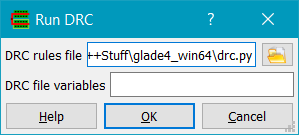
Shows the Run DRC dialog. Choose a DRC file and run DRC. Any existing DRC violation markers are erased. If an environment variable GLADE_DRC_FILE is set, the DRC rules file will be set to the value of GLADE_DRC_FILE (which must be a full path name). DRC file variables can be set using the DRC file variables entry; both the name and value are passed to Python as strings. Options should be in the form of name=value, separated by a space. If an environment variable GLADE_DRC_VARS is set, the variables will be set to the value of this env var.
Verify->DRC->View Errors...
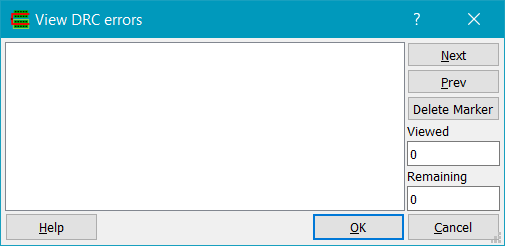
Steps through DRC errors. Click on a rule violation in the left hand list box to select the type of violation you wish to view. The first violation marker will be selected and zoomed in on. Subsequently you can use the Next and Prev buttons to step through the list of violation markers, zooming in on each new marker. The Delete Marker button will delete the currently viewed error marker. Viewed is the number of violations viewed so far; Remaining is the total number of violations remaining (the starting number less the number deleted using Delete Marker).
Verify->DRC->Clear Errors
Clears all errors on the drcMarker layer.
Verify->Extract->Run...
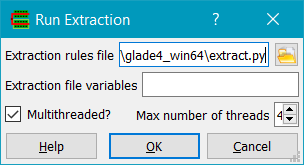
Shows the Run Extract dialog. Choose an extraction file and run extraction. If an environment variable GLADE_EXT_FILE is set, the extraction rules file will be set to the value of GLADE_EXT_FILE (which must be a full path name). Extrction file variables can be set using the Extraction file options entry. Options should be in the form of name=value, seperated by a space; both the name and value arepassed to Python as strings. Multithreaded if checked runs connectivity analysis in the number of threads specified in Max number of threads, which defaults to the maximum number of logical cores the machine can use. If an environment variable GLADE_EXT_VARS is set, the variables will be set to the value of this env var.
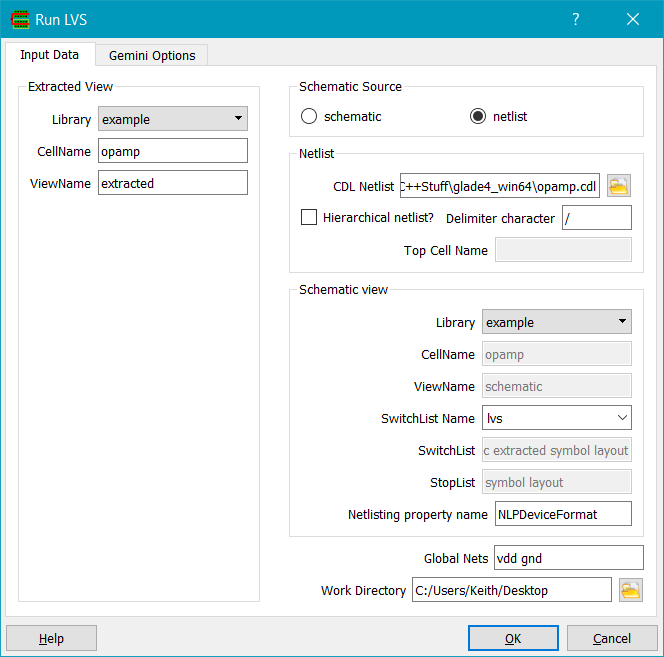
Shows the Run LVS dialog. Open an extracted view or specify the name of an existing extracted view in the Library/CellName/ViewName fields. If Schematic source is set to netlist, specify the name of the netlist in the CDL Netlist field. This can be preset via an enrionment variable GLADE_NETLIST_FILE. If the Schematic source is set to schematic, the Schematic view panel is enabled and you can specify a library/cell/view name that will be netlisted and flattenned automatically.
Global Nets specifies global nets for the CDL netlist file. For a hierarchical netlist from a schematic, the Switch List and Stop List control the netlist hierarchy traversal. Switch/Stop/Globals lists are stored with a name tag, so multiple different switch/stop lists can be chosen from. The SwitchList name field is the name of the tag. You can edit this name to create a new tag, and the name and the switch/stop/globals lists will be stored in the gladerc.xml file so they can be recalled in future sessions. The Switch List is a list of view names that the netlister can descend into. The Stop List is a list of views that the netlister will stop descending into, and instead write the device to the netlist according to its NLPDeviceFormat property. If Hierarchical netlist? is checked, then a hierarchical netlist will be flattened before passing to the LVS engine (see cdlflatten). Delimiter character specifies the delimiter between hierarchical names of nets and instances. Top Cell Name must be specified for a hierarchical netlist; it is the top level .subckt name that corresponds to the design to be verified. The netlister property name can be set in the Netlisting property name field. It is a space-delimited list of names of the property to be used for netlisting; the first found is used, else the property name 'NLPDeviceFormat' is used.
Working Directory specifies a directory where temporary files are written. The extracted view is netlisted to a CDL file which is compared to the specified schematic netlist. Match info and/or discrepancies are written to the log file.
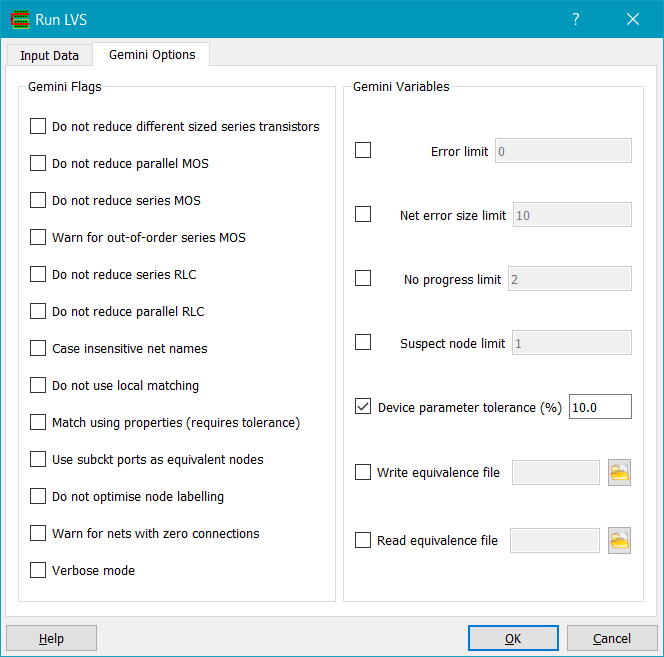
The Gemini Options tab allows specification of Gemini options. See Gemini for the command line equivalents and for running Gemini on its own.
- Do not reduce different sized series transistors - Normally series MOS devices are merged; checking this option prevents the merge if they have different L/W.
- Do not reduce parallel transistors - Parallel (or multi-fingered) MOS devices with the same S/D/G/B nets are normally collapsed into a single device whose width is the sum of the individual widths; checking this option prevents merging.
- Do not reduce series transistor chains - This option prevents series MOS devices from being merged.
- Warn for out-of-order chains - If series merged transistors match, but have different gate net order, then a warning will be issued.
- Case insensitive net names - Normally net names are case sensitive i.e. clk and Clk are different nets; checking this option treat them as the same net.
- Do not use local matching - this option stops Gemini from using the local matching algorithm to speed up checking. It is normally never required.
- Match using properties - Gemini does not consider device properties (e.g. W, L) when matching devices. Checking this option can resolve some symmetric circuits which have different device properties. The Device Parameter Tolerance option must also be checked.
- Use subckt ports as equivalent nodes - Gemini defaults to matching netlists without any initial equivalence points. If checked, then if both netlists have .subckt/.ends lines, the port names in the .subckt line will be used for equivalence. Errors will be generated if the number of ports is different, or if the port names do not match. This option can resolve some symmetric circuits where the difference is with the port names.
- Do not optimise node labelling - Gemini will try and optimise node labelling to assist matches. This option is normally never required.
- Warn for nets with zero connections - Gemini will report an error for nets with no connections. Not very useful.
- Verbose mode - Gemini will generate extra information in the message window while running.
- Error limit - Sets the allowed number of errors. The default is zero.
- Net error size limit - Gemini will report this number of devices connected to unmatched nets. Typically if e.g. power/ground nets mismatch, a lot of errors can be generated. The default limit is to report 10.
- No progress limit - Sets the iteration limit if no progress is made relabelling nodes to try and find a match.
- Suspect node limit - Sets the limit of suspect nodes allowed.
- Device parameter tolerance - if checked, device properties e.g. W/L, R, C, L are checked according to the specified tolerance, else properties are not checked.
- Write equivalence file - Writes a file containing equivalent net names between the layout and schematic. Each line has the format '= <name1> <name2>'.
- Read equivalence file - Reads a equivalence file containing net names to be considered as initially matched in the format '= <name1> <name2>. This can sometimes help with circuits with symmetry, or many errors. Note that incorrectly specifying matched names can result in wrong results.
Gemini will write mismatch information to the message window, and to the open extracted view as error markers for nets/devices.
Verify->Import Hercules Errors
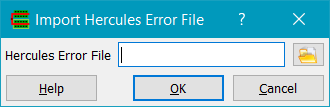
Imports a Hercules error file. The DRC error viewer can then be used to step through the errors.
Verify->Import Calibre Errors
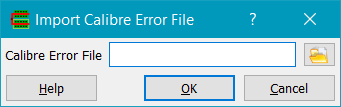
Imports a Calibre error file. The DRC error viewer can then be used to step through the errors. Both flat and hierarchical Calibre error files are supported.
Verify->Compare Cells...
Allows comparison of layers from two different cellviews using a multithreaded XOR operation. This can be useful for checking the changes made between two different versions of a design.
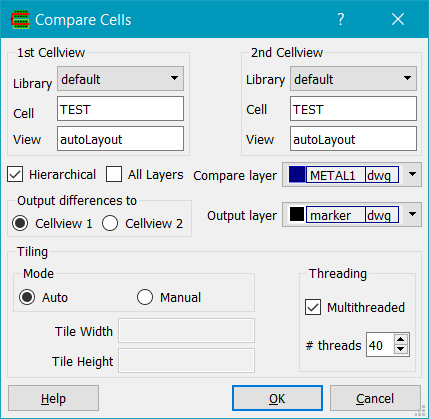
The data to be compared is specified by the 1st CellView and 2nd CellView. They are compared by the Compare layer using an XOR. If Hierarchical is checked, the cells are flattened for the compare, else only shapes on the Compare layer at the top level will be compared. If All Layers is checked, all the layers are compared, else just the Compare Layer .The results are output to the cellView specified in the Output differences to field. Results are written to the Output layer specified - if drcMarker is used (the default), then differences can be viewed using the DRC->View Errors command.
Comparison is done by multithreaded tiling of the original data to handle large designs. For setting tile sizes and multithreading options, see the Tiled Boolean Operations command.
Note: if you want to compare two cells by importing e.g. GDS2 or OASIS files, you MUST use import a techfile for each import with the same GDS layer/datatype to layer/purpose mapping. Failing to do this (e.g. importing two GDS2 files without importing any techfile) will most likely result in the GDS layer/datatype of one file being assigned to a different internal layer number from that of the second file. This is because internal layer numbers represent layer/datatype or layer/purpose pairs as a single number, and the mapping is assigned in the order the pairs are encountered.
Verify->Trace Net
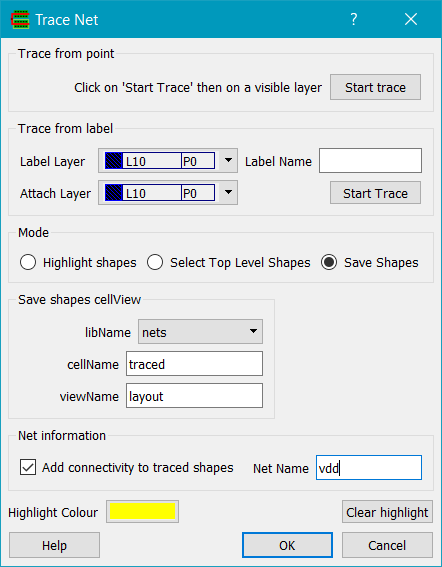
Traces connectivity either from a start point or from a text label. To use the net tracer, the technology file must have layers with their CONNECT attributes defined. For example:
CONNECT poly drawing BY contact drawing TO metal1 drawing ;
CONNECT metal1 drawing BY via1 drawing TO metal2 drawing ;
CONNECT metal1 drawing TO metal1 drawing ;
In the first two cases, connection of the poly layer to
the metal1 layer is through a via layer. In the second case, the two
layers connect without any via layer. The via layer may also be given last, as in
CONNECT metal1 drawing TO metal2 drawing BY via1 drawing. A rule without
a via layer connects the two layers wherever their shapes overlap.
To use the net tracer to trace from a shape, click on the Trace from point/Start Trace button. Tracing will continue until no more connecting shapes are found. Tracing may be aborted by clicking on the red abort button next to the progress bar on the status bar.
To use the net tracer to trace from a text label, set the Label Layer and the Attach Layer (which can be the same layer). Enter the label's name in Label1 Name and click on Trace from label1. Note that currently, only labels on the top level of the cellView hierarchy can be traced from.
Mode selects whether traced shapes are highlighted (the default) or selected. Only shapes on the top level (currently displayed) cellView can be selected. The third option, 'Save Shapes', writes all traced shapes to a cellview, given by libName/cellName/viewName. The saved shapes are flattened: each is saved where it is placed in the traced cellView.
If the checkbox Add connectivity to traced shapes is set, then a net with the name given by Net Name will be created it it does not already exist, and all traced shapes will be assigned to that net. NB entering a Label1 Name for tracing from a text label will automatically set the Net Name field.Finding shorts
The net tracer can find the shapes that connect two points, or two labels, that should be on different nets. It traces from both at once, and when the two traces meet, it finds the shortest chain of shapes from one to the other. The short is somewhere on that chain. The chain is highlighted in the Highlight Colour, and the shape where the two traces met in the Short Colour; each shape on the chain (its type, layer, bounding box and cell) is listed in the log window. If the two points are not connected, the log says so.
To find a short between two points, click on Point 1 and click on a shape on one net, then click on Point 2 and click on a shape on the other net. The short is found once both points are given; picking either point again finds the short again, keeping the other point. To find a short between two labels, set the Label Layer and Attach Layer, enter the label names in Label1 Name and Label2 Name, and click on Short trace from label1 to label2. Finding a short can be aborted with the red abort button next to the progress bar. If the two points are not connected, one of the nets is traced completely, which on a large net can take a while.
Clicking on Highlight Colour will alllow changing the highlight colour, and Short Colour the colour for the shape where the traces of a short met. Clear highlight clears all highlighted shapes. Using the selection options dialog to dim unhilited objects can make the trace result clearer.
Verify->Set Layer Stack
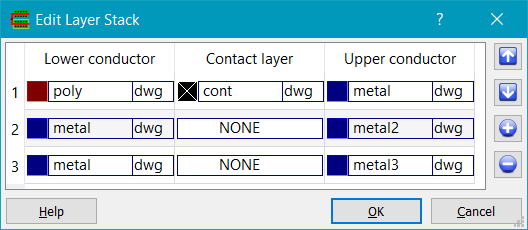
Displays the layer connectivity used for the Trace Net
command (and also settable in the techfile as described above, or
set during import of LEF/DEF). The dialog displays lower conducting layers,
optional contact layers and upper conduction layers. So in the above dialog,
poly connects to cont which connects to metal2. metal2 connects to metal, and
metal also connects to metal3.
To edit a layer, double click
on it and the icon will change to a combo box as shown in the second column,
third row of the dialog above. You can set the layer to any layer including a special
layer 'NONE' which when used for the contact layer means there is no explicit
contact layer between the conducting layers.
To add a row of connecting layers,
use the '+' buttton. To delete a row of layers, select the row by single
clicking on it, then use the '-' button. To move a row of layers up, select a
row and use the 'up' bottom. Similarly to move a row down, select the row and
use the 'down' button.
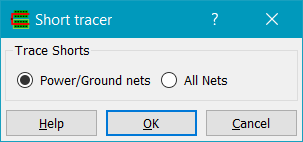
The Short Tracer can be used for DEF or similar designs that have connectivity. Either Power/Ground nets, or All Nets can be checked for touch/overlap against shapes connected to a different net. The bounding box of the shorting region is reported, and this bounding box is written to the drcMarker layer so that the DRC->View Errors dialog can be used to step through the errors, zooming to each short location. Currently only top level nets are checked against other top level nets; in other words the check is done flat.